
Google’s Nano Banana was released in this year, August. I missed to write an article about it so now I tested Nano Banana Pro.
How to try it out?
Nano Banana Pro is available in Google Gemini. You will see this starting screen when you open the Gemini webpage:

I would like to note that if you click on the Try It link at the top of the page, then Banana will load a sample prompt and generates an image, which already counts towards your 3 image limit per day.
Click on the Create Image button to activate the Nano Banana Pro image model.

Note: You can create only 3 images / day for free.
Test #1 – The inbuilt sample prompt
The prompt is very detailed and long, so I pasted it with a small sized font:
“Create a comic with the title: Getting started with Nano Banana Pro. Panel 1: A mobile interface on Gemini, rendered in a poetic watercolor-ink style with fine ink outlines and soft, bleeding washes. The interface is friendly and a hand painted with expressive brushwork taps a prominent button labeled “Create image”. Above the button it should say “Choose your Model” then below there should be a checkbox that says “Thinking with 3 Pro” Muted greys and blues dominate the background. The button has a vivid yellow accent. “ Select the Thinking with 3 Pro model” and tap “Create image” to begin. Panel 2: A cheerful person is depicted adding their selfie from the phone’s camera. The user’s face is drawn with soft outlines and warm pastel colors, while the phone and UI maintain the delicate water-ink aesthetic. Visible paper grain adds to the texture. Panel 3: The person thinks about what to create. In the background, different options are visualized to show what they’re thinking, including — them as a plushie, them with a mohawk hairstyle, and a figurine. These options are clearly rendered behind the person in the same style as the rest of the comic. Panel 4: The person is shown adding a style prompt, with a speech bubble saying “Transform me into a watercolor painting”. The text is integrated into the panel’s watercolor-ink look, and the interaction feels natural and intuitive. Panel 5: The person is seen editing the image by simply typing into Gemini. The scene captures the ease of this interaction, with the final edited image, now in a watercolor style, appearing on the screen. The overall tone is friendly, instructional, and inspiring. It feels like a mini tutorial comic, all conveyed through the specified delicate water-ink illustration style. Make the aspect ratio 16:9.”
And this is the result:

Click on the image to enlarge
It’s pretty convincing. The typography is perfect. I don’t see any typos or other problems on the picture.
Remark: Gemini also included the banana emoji in the prompt, but I had to delete it to able to save the blogpost.
Update: I tried the same prompt with ChatGPT (GPT Image 1.5):
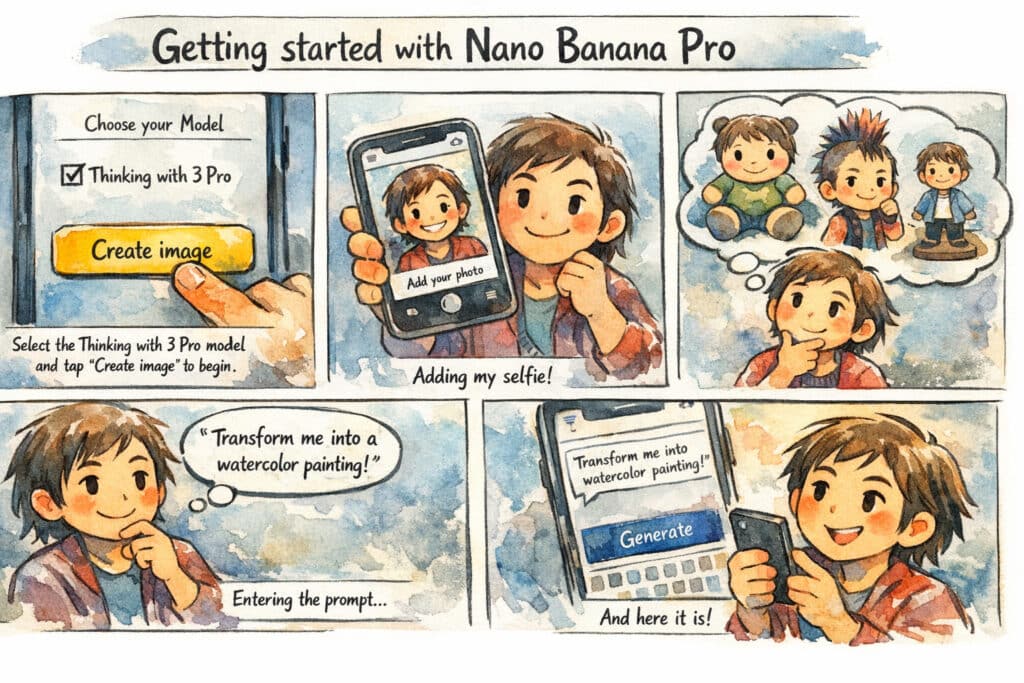
This results is impressive too. I think that Nano Banana Pro has a new rival.
Test #2 – Infographic
I used this prompt:
Create an infographic-like image of the most popular brushes in similar style as on the attached example picture, but with landscape aspect ratio (eg. 16:9). The brushes are from top to down: 2B Pencil, Ballpoint Pen, Soft Airbrush, Watercolor brush, Acryl brush, Oil paint, Calligraphic brush. Each row contains the stroke of the brush or tool with realistic and relevant color. Next to the stroke is the photorealistic illustration of the tool (for example it is clearly visible that the brush stroke was painted with the brush) and a sample image that was drawn with the tool. The image should also contain the name of every tool with a good readable darkbrown coloured font. There is also a darkbrown coloured victorian ornamental frame around the infographic.
The reference image was Krita’s first picture about brushes.
This is the generated image:

The result is impressive! Gemini precisely followed my instructions: text, tools, samples, structure, victorian border: everything is on the picture.
Using Banana in Leonardo.Ai
You can also try it in Leonardo.Ai, but in the free plan you have only 150 tokens. One image with Nano Banana Pro costs 140 tokens, so you can generate only 1 image.
Tokens are resetting in 12 hours, so you have a 2 image daily quota.
In Leonardo free plan you can use 1 reference image. I made a test with it.
This is the starting real estate interior photo:

This is a very simple prompt to replace some objects on this living room photo:
Replace the pictures on the wall with photos from Gobi desert. Replace the couch with a darkbrown leather couch. Change the wall colour to matching bluegreen, increase the density of the foliage.
And this is the final result:

I think it’s pretty good. Nano Banana also was able in August to make this kind of change on a picture – I think.
The best thing is, that it doesn’t change the alignment or form of the objects in the scene, it changes only what you define in the prompt.
Let’s summarize what are the new features of the 2nd version of Nano Banana.
Summary
Nano Banana Pro is a revolutionary model. It’s fantastic and a little bit scary at the same time. Images made with this new model are more realistic and hard to make a difference between real photo an AI generated image. In another article I will post images which compare the standard and pro version of Banana.
The main new features are:
- enhanced prompt adherence
- better consistency (you define what to change or replace, the other objects and forms remaining intact)
- ability to create complex text and image combinations on one picture, like:
- infographics
- comics
- accurate scientific graphics
- easily change the mood, like: lighting, season, camera angle etc.


Interesting review. The hands-on tests with the comic strip, infographic, and image editing prompts demonstrate Nano Banana Pro’s strong prompt adherence and consistency in results. The visual examples look impressive. Thanks for sharing the findings.
Thank you for your kind feedback!
I’m curious about Test #1, how did the inbuilt sample prompt perform in Nano Banana Pro compared to other AI art tools you’ve tried?
Thanks for the good question. I added just now a new test image with GPT Image 1.5. You can see that this model is also very powerful in similar tasks.
I’m curious about Test #2 – Infographic, how did the Nano Banana Pro perform in generating visual content compared to other AI art tools you’ve tried?
Please check my answer to your prev. question. I think the result is pretty convincing. Both Nano Banana Pro and GPT Image 1.5 is powerful in complex tasks like these tests.
Curious how the text rendering holds up with more complex multilingual prompts. Most models still struggle badly there. Did you notice any difference in generation speed between the Pro and the base model on longer prompts?
I don’t tested this scenario (multilingual prompts + text rendering). If you have any results, then please share it (even in text format only).
Maybe later I do some tests with GPT-Image, Nano Banana 2 and also Ideogram.
And honestly, I also not tested separately the performance of pro and free versions, but it’s a good idea.
Nano Banana Pro’s typography really surprised me — the generated comic panel came out clean. The side-by-side comparison with GPT Image 1.5 makes me want to test more image models myself. If you’re into this kind of prompt experimentation, DeepAI is another handy option since it bundles chat, image, and video generation in one place. Curious to see how the daily limit changes in the future, though.
Nice test rundown, thanks for sharing! The 3 images/day free limit is honestly the reason I started looking beyond classic image generators – I wanted to take a generated 2D image and push it into 3D. Lately I have been using Pixal3D for that: it converts a single photo into a textured GLB model in seconds, with proper PBR materials and no guesswork on the back side. It is open-source (MIT), which was a big plus for me. Definitely worth a try if you ever feel like testing image-to-3D on this blog: https://pixal-3d.com/
Thank you, I plan to write an article about image-to-3D tools in the near future. 🙂